About 5 minutes, once per Mac
Install Floww Mask
Mac with Apple silicon (M1 or later), macOS 11 or later, and the Infloww desktop app signed in with your agency account.
Open Floww Mask again after every Infloww update. An Infloww update replaces the app: opening Floww Mask once puts the mask back.
Download
Sign in with Google: your Free account is created, and Floww Mask downloads from your account page.
Open it the first time
- In Downloads, double-click the Floww-Mask zip file, then drag Floww Mask into Applications.
- Double-click Floww Mask. macOS says it can’t check it: click Done.
- Open System Settings → Privacy & Security, scroll down, click Open Anyway next to Floww Mask, and type your Mac password.
Let it modify Infloww
- If a message says Floww Mask was prevented from modifying apps: System Settings → Privacy & Security → App Management, turn on Floww Mask.
- Open Floww Mask again from Applications.
- It asks for your Mac password once, so it is not asked again after each update.
Infloww restarts
- Infloww closes and opens again by itself.
- If macOS asks for access to infloww Safe Storage: type your Mac password and click Always Allow. It can ask twice.
Sign in and load the stats
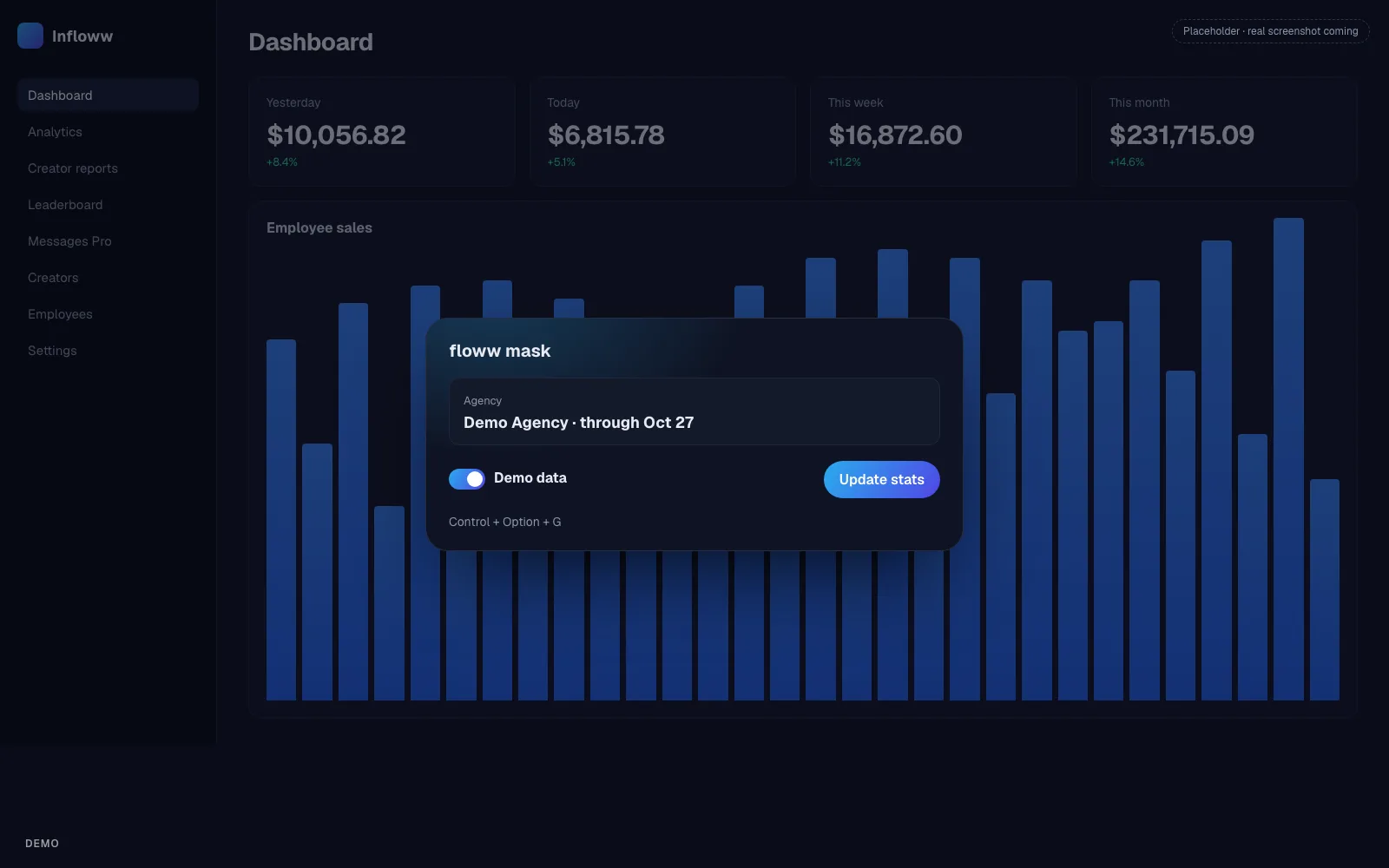
- In Infloww, press Control + Option + G to open the panel.
- Paste your license key (from Account on flowwmask.com) and click Activate.
- Choose your agency, then click Update stats. Demo numbers appear.
Before each demo
- Open Infloww, then Control + Option + G → Update stats. Stats stay in memory only: after restarting Infloww, they come back by themselves.
- Keep Demo data on. Turn it off to see your real numbers again.
- In the OnlyFans view, click inside the view first so the shortcut opens the panel there.
- When a new version of Floww Mask is out, the panel shows Update available: click Install.